


'%3e%3cpath%20d='M6.42532%207.40439C6.16072%207.40439%205.94575%207.48708%205.78037%207.65244C5.615%207.80127%205.53231%208.01627%205.53231%208.2974V23.7018C5.53231%2023.9664%205.615%2024.1813%205.78037%2024.3467C5.94575%2024.5122%206.16072%2024.5947%206.42532%2024.5947H8.4842C8.76533%2024.5947%208.98032%2024.5203%209.12916%2024.3715C9.29452%2024.2062%209.3772%2023.9829%209.3772%2023.7018V8.2974C9.3772%208.01627%209.29452%207.80127%209.12916%207.65244C8.98032%207.48708%208.76533%207.40439%208.4842%207.40439H6.42532ZM3.42383%208.09895C3.42383%207.25556%203.67188%206.57753%204.168%206.06487C4.68064%205.55223%205.3504%205.2959%206.17727%205.2959H8.68264C9.52604%205.2959%2010.2041%205.55223%2010.7167%206.06487C11.2294%206.561%2011.4857%207.23075%2011.4857%208.07414V11.7702C11.6841%2011.7206%2011.8991%2011.6958%2012.1306%2011.6958H16.7197H16.9677L16.6949%2010.7532C16.5957%2010.4224%2016.5461%2010.1165%2016.5461%209.83535C16.5461%209.24001%2016.7197%208.72737%2017.0669%208.2974C17.4308%207.85089%2017.9353%207.54495%2018.5801%207.37958L20.9615%206.75943C21.2095%206.69329%2021.4825%206.66022%2021.7801%206.66022C22.425%206.66022%2022.9791%206.84212%2023.4421%207.20595C23.9217%207.56975%2024.2524%208.07414%2024.4343%208.7191L28.4529%2022.5358C28.5356%2022.8667%2028.5769%2023.1643%2028.5769%2023.429C28.5769%2024.0243%2028.3949%2024.5451%2028.0311%2024.9917C27.6839%2025.4382%2027.1877%2025.7442%2026.5428%2025.9094L24.1615%2026.5048C23.8306%2026.5875%2023.5413%2026.6288%2023.2932%2026.6288C22.6813%2026.6288%2022.1356%2026.4469%2021.6561%2026.0832C21.193%2025.7194%2020.8705%2025.2149%2020.6887%2024.5699L19.498%2020.4522V23.9002C19.498%2024.7437%2019.2417%2025.4216%2018.729%2025.9342C18.2329%2026.4469%2017.5714%2026.7032%2016.7445%2026.7032H12.1803C11.4692%2026.7032%2010.8904%2026.5296%2010.4439%2026.1824C9.98082%2026.5296%209.41028%2026.7032%208.73226%2026.7032H6.22688C5.38348%2026.7032%204.70546%2026.4469%204.1928%2025.9342C3.68015%2025.4382%203.42383%2024.7766%203.42383%2023.9498V8.09895ZM12.3787%2013.8043C12.1141%2013.8043%2011.8991%2013.887%2011.7337%2014.0523C11.5684%2014.2012%2011.4857%2014.4162%2011.4857%2014.6973V23.7018C11.4857%2023.9664%2011.5684%2024.1813%2011.7337%2024.3467C11.8991%2024.5122%2012.1141%2024.5947%2012.3787%2024.5947H16.4964C16.7777%2024.5947%2016.9925%2024.5203%2017.1413%2024.3715C17.3068%2024.2062%2017.3895%2023.9829%2017.3895%2023.7018V14.6973C17.3895%2014.4162%2017.3068%2014.2012%2017.1413%2014.0523C16.9925%2013.887%2016.7777%2013.8043%2016.4964%2013.8043H12.3787ZM19.3988%209.33924C18.9522%209.47153%2018.729%209.73614%2018.729%2010.133C18.729%2010.1992%2018.7455%2010.2984%2018.7786%2010.4307L22.673%2023.8506C22.8385%2024.2971%2023.1196%2024.5203%2023.5165%2024.5203C23.6322%2024.5203%2023.7233%2024.5122%2023.7893%2024.4955L25.7242%2023.9498C26.1708%2023.8176%2026.394%2023.553%2026.394%2023.156C26.394%2023.0899%2026.3773%2022.9907%2026.3444%2022.8584L22.4746%209.46327C22.4085%209.24828%2022.301%209.08291%2022.1522%208.96715C22.0199%208.83486%2021.8628%208.76871%2021.6809%208.76871C21.6148%208.76871%2021.5154%208.78524%2021.3833%208.81831L19.3988%209.33924Z'%20fill='%23802FFB'/%3e%3c/g%3e%3cdefs%3e%3cclipPath%20id='clip0_11502_53434'%3e%3crect%20width='32'%20height='32'%20fill='white'/%3e%3c/clipPath%3e%3c/defs%3e%3c/svg%3e)

New XMind users and beginners
When starting to use XMind for the first time and needing to memorize essential shortcuts.
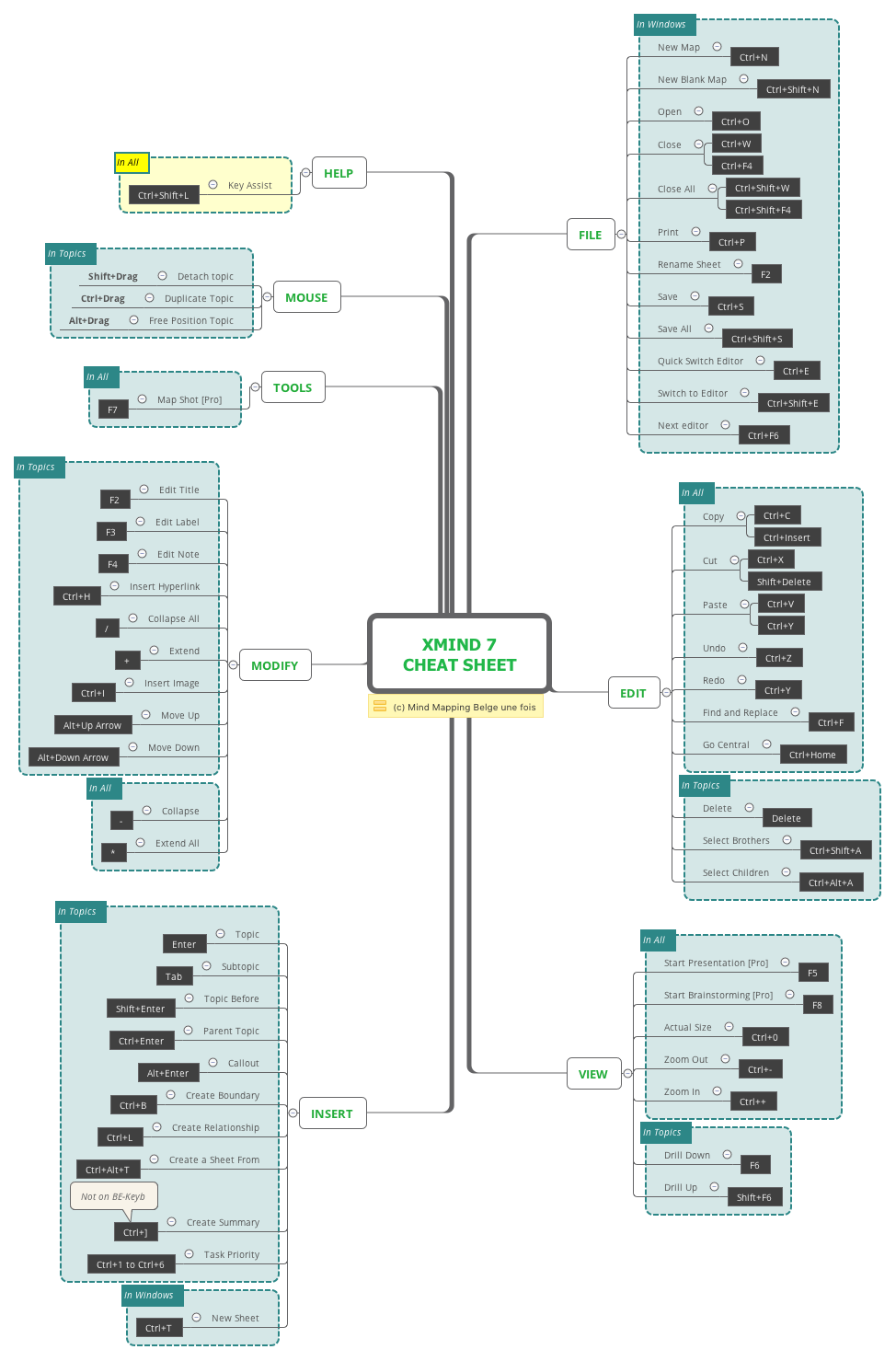
The XMind 7 Cheat Sheet is a comprehensive mind map template that compiles 126 keyboard shortcuts across 8 major categories: File, Edit, View, Insert, Modify, Tools, Mouse, and Help. Designed for both novice and power users, this template serves as a quick-reference guide to accelerate workflow in XMind 7. Key shortcuts include 'Ctrl+N' for New Map, 'Ctrl+Shift+A' to Select Brothers, and 'F5' to Start Presentation [Pro]. The layout is organized as a radial mind map with color-coded branches, making it easy to locate shortcuts by function. This cheat sheet is ideal for anyone looking to master XMind's keyboard shortcuts and boost productivity.
Terms and ConditionsWhen starting to use XMind for the first time and needing to memorize essential shortcuts.
During a brainstorming session where quick topic insertion and navigation are critical.
When preparing a presentation in XMind and needing to quickly access presentation shortcuts like F5.
Download the .xmind file and open it to browse the 126 keyboard shortcuts organized across eight major functional categories.
Use the Drill Down feature to focus on specific categories and personalize the template by adding or removing shortcuts to fit your workflow.
Save the mind map as an image or print it out to keep a physical quick-reference guide handy while you work.
The cheat sheet covers 126 shortcuts across 8 categories: File, Edit, View, Insert, Modify, Tools, Mouse, and Help. Examples include Ctrl+N (New Map), F5 (Start Presentation), and Ctrl+Shift+L (Key Assist).
Yes, the XMind 7 Cheat Sheet template is free to download and fully editable in XMind. You can customize it by adding your own shortcuts or reorganizing the layout.
Open the .xmind file in XMind, then study the branches by category. Use the 'Drill Down' feature (F6) to focus on one category at a time, or print it for offline reference.
Yes, it includes Pro-only shortcuts like F5 (Start Presentation), F8 (Start Brainstorming), and F7 (Map Shot), marked with [Pro] labels.
Absolutely. Use Ctrl+P to print, or export the mind map as an image or PDF from XMind for a physical reference.
Share your mind map templates with creators around the world and start earning from your work.

