




New XMind users and beginners
When you first install XMind 8 and need a quick overview of its features and capabilities.
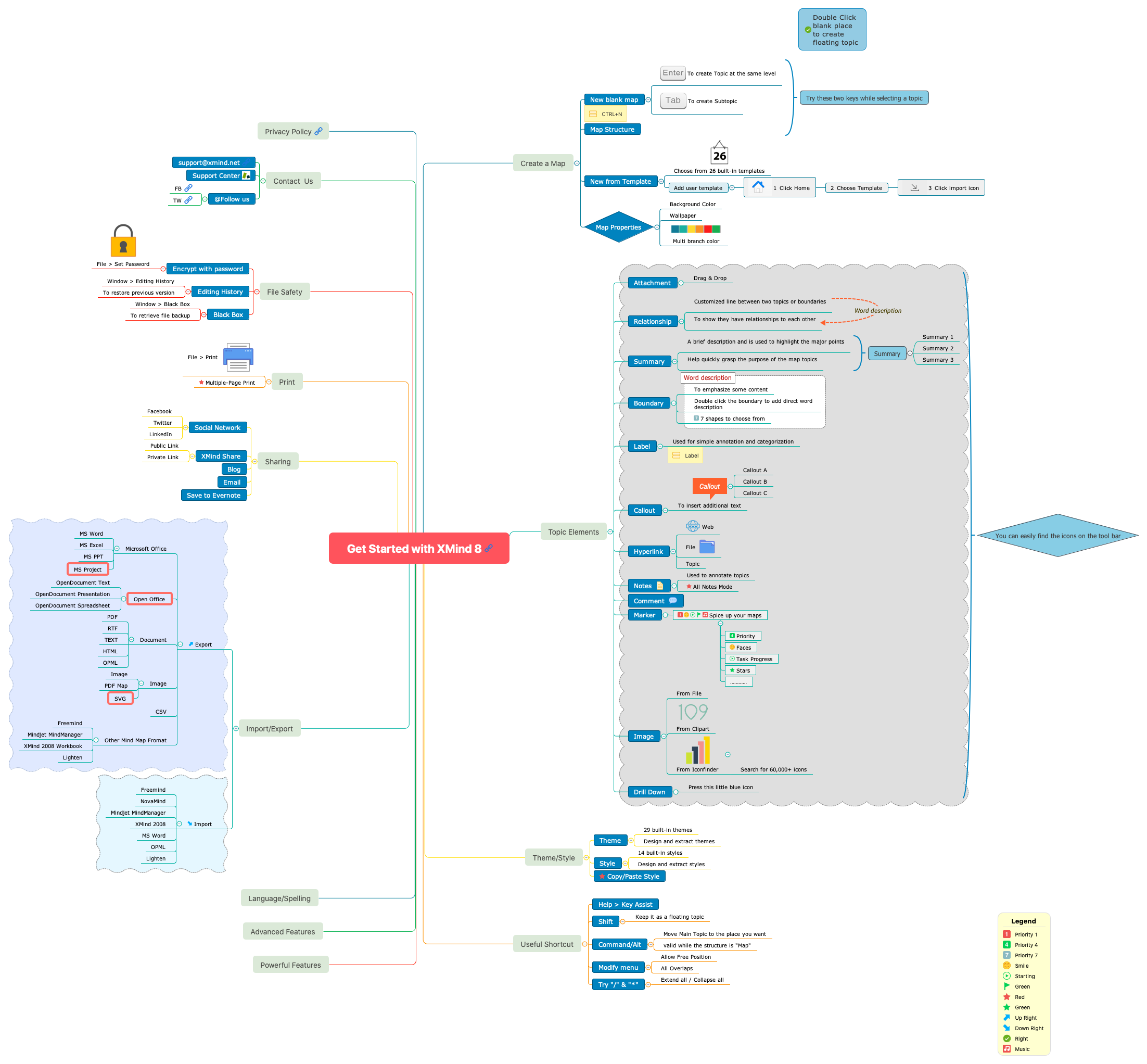
The 'Get Started with XMind 8' mind map template is a comprehensive guide for new users, covering over 150 nodes across 15 major branches including 'Create a Map', 'Topic Elements', 'Theme/Style', 'Useful Shortcut', 'Powerful Features', 'Import/Export', and 'Sharing'. This template serves as an interactive cheat sheet, detailing how to create maps, use elements like 'Relationship' and 'Summary', apply 29 built-in themes, and export to formats such as MS Word, PDF, and SVG. It also includes shortcuts like 'Shift' to create floating topics and 'Command/Alt' to move main topics. With step-by-step instructions on file safety via password encryption and editing history, this template is an essential onboarding tool for XMind 8 users.
Terms and ConditionsWhen you first install XMind 8 and need a quick overview of its features and capabilities.
During a team onboarding session where new members need to learn how to create and share mind maps.
When you need to export a mind map to a specific format like MS Word or PDF for reporting.
Open the template in XMind 8 to browse the fifteen major branches covering map creation, topic elements, and powerful features.
Click on specific nodes to reveal subtopics that detail keyboard shortcuts, theme applications, and file safety settings like password encryption.
Apply the learned techniques to your own projects and use the export branch to save your maps as PDF, Word, or SVG files.
The template covers 157 nodes across branches like Create a Map, Topic Elements, Theme/Style, Useful Shortcut, Powerful Features, Import/Export, Sharing, and File Safety. It includes instructions on using elements like Relationship, Summary, Boundary, and Marker, plus shortcuts and export options.
The Relationship element creates a customized line between two topics or boundaries to show they have relationships to each other. You can add it from the toolbar and adjust its style.
Yes, under Import/Export > Export > Microsoft Office, you can export to MS Word, MS Excel, MS PPT, and MS Project. Other export formats include PDF, RTF, HTML, SVG, and CSV.
Go to the Theme/Style branch. You can choose from 29 built-in themes or design and extract your own. Simply select a theme from the gallery to apply it to your entire map.
Yes, the template is free to use and fully editable in XMind 8. You can customize all topics, add your own notes, markers, images, and change themes and styles.
Key shortcuts include Shift to create a floating topic, Command/Alt to move a main topic (valid while structure is 'Map'), and '/' to extend all or '*' to collapse all. You can view all shortcuts under Help > Key Assist.
Share your mind map templates with creators around the world and start earning from your work.

