



New users and beginners in mind mapping
When first opening Xmind and needing a quick overview of its features and workflows.
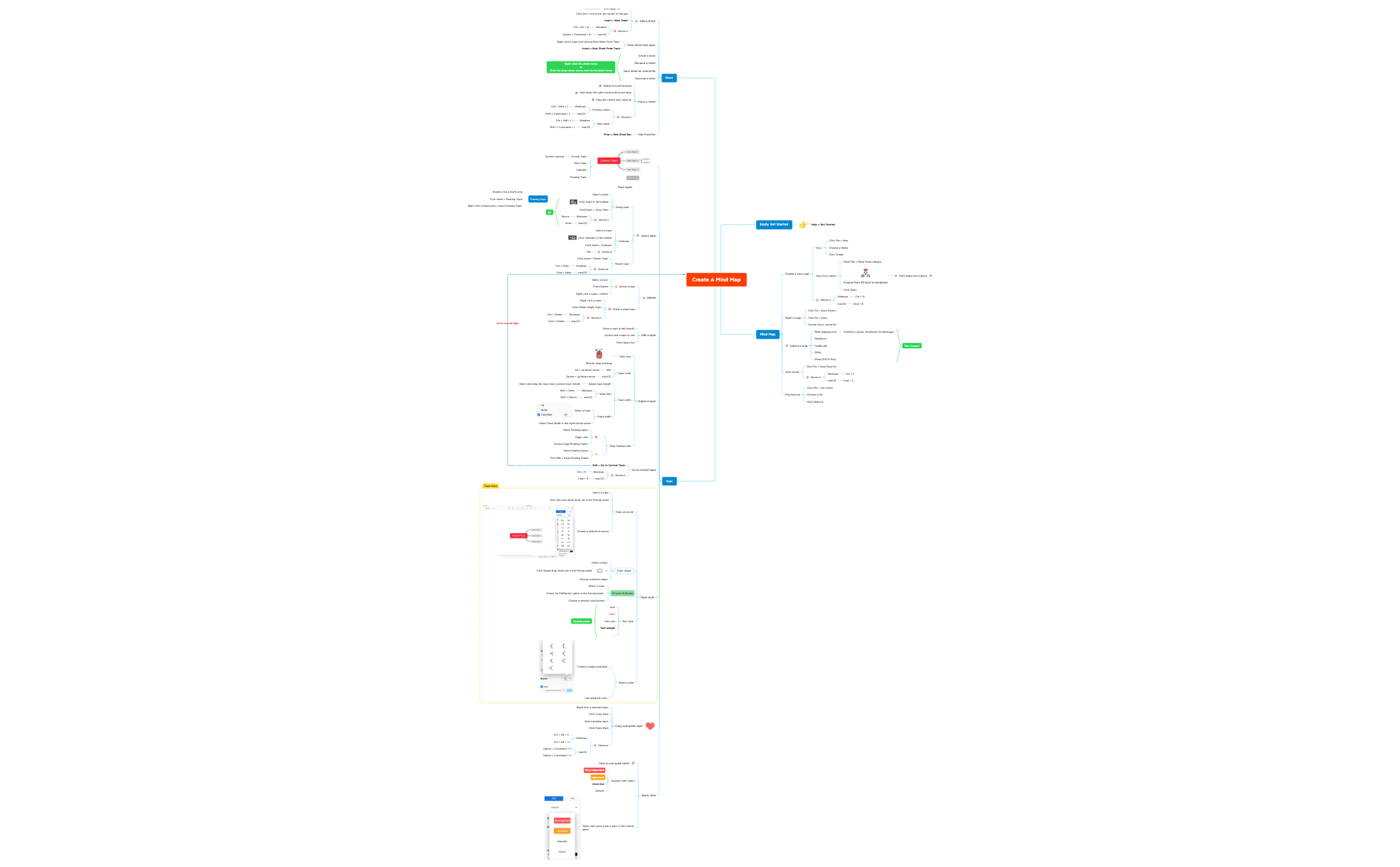
The 'Create A Mind Map with XMind 2020' template is a comprehensive guide for new and experienced users to master Xmind's core features, covering over 200 nodes across topics like map creation, topic editing, sheet management, and floating topics. This mind map template serves as both a tutorial and a cheat sheet, detailing how to create a new map via File > New, import from tools like FreeMind or MindManager, and use shortcuts for Windows and macOS. It includes verbatim node names such as 'Central Topic' and 'Floating Topic' to illustrate topic types and structures. Designed for self-paced learning, it provides step-by-step instructions for adjusting topic order, applying quick styles like 'Very Important', and managing sheets with drag-and-drop. This Xmind template is ideal for anyone looking to efficiently navigate the software's interface and enhance their mind mapping skills.
Điều khoản sử dụngWhen first opening Xmind and needing a quick overview of its features and workflows.
When preparing a training session or onboarding material for team members new to Xmind.
When troubleshooting or looking up specific actions like importing maps or using shortcuts during active mind mapping.
Open the .xmind file in Xmind desktop or web to see the full template structure.
Navigate through the branches (Easily Get Started, Mind Map, Topic, Sheet, Floating Topic) to learn each feature.
Click on any topic to read the detailed steps; for example, under 'Create a new map', follow 'Click File > New' and choose a theme.
Practice by creating a new map using the shortcuts listed, such as pressing Tab to add a subtopic.
Customize the template by adding your own notes or deleting nodes to create a personalized cheat sheet.
This template includes over 200 nodes covering map creation, topic editing, sheet management, and floating topics. It provides step-by-step instructions for tasks like creating a new map, importing from other tools, and using shortcuts.
The template lists keyboard shortcuts for Windows and macOS under each action, such as creating a sibling topic or navigating sheets. You can refer to the 'Shortcut' nodes within the 'Mind Map' and 'Sheet' branches.
Yes, the template explains how to change topic shape, fill color, border, and text style via the Format panel. You can also copy and paste styles between topics using 'Copy Style' and 'Paste Style'.
The template is included in Xmind's library and is fully editable. You can open it in Xmind desktop or web, modify topics, add new sheets, and save your own version.
The template shows three ways to add a floating topic: double-clicking a blank area, using Insert > Floating Topic, or right-clicking a blank area. This is useful for adding standalone ideas.
The template lists import from FreeMind, Lighten, MindNode, MindManager, Markdown, TextBundle, OPML, and Word (DOCX only). These are detailed under 'Import a map' in the 'Mind Map' branch.
Chia sẻ mẫu sơ đồ tư duy của bạn với người sáng tạo trên khắp thế giới và bắt đầu kiếm tiền từ tác phẩm của mình.

