


'%3e%3cpath%20d='M3.2002%2016.6001H28.8002'%20stroke='%2352AA6F'%20stroke-width='2.25'%20stroke-linecap='round'/%3e%3cpath%20d='M5%2017.6001C5%2022.4001%208.8%2027.5%2016%2027.5C23.2%2027.5%2027%2022.4536%2027%2017.6536'%20stroke='%2352AA6F'%20stroke-width='2.25'%20stroke-linecap='round'%20stroke-linejoin='round'/%3e%3cpath%20d='M11.2002%2012.7998C11.2002%209.5998%2012.8002%208.7%2012.8002%205.5M16.0002%2012.7998C16.0002%209.5998%2017.6002%208.7%2017.6002%205.5M20.8002%2012.7998C20.8002%209.5998%2022.4002%208.7%2022.4002%205.5'%20stroke='%2352AA6F'%20stroke-width='2.25'%20stroke-linecap='round'/%3e%3c/g%3e%3cdefs%3e%3cclipPath%20id='clip0_11502_53637'%3e%3crect%20width='32'%20height='32'%20fill='white'/%3e%3c/clipPath%3e%3c/defs%3e%3c/svg%3e)

Bar managers and restaurant owners
Designing a new cocktail menu for a bar or restaurant launch
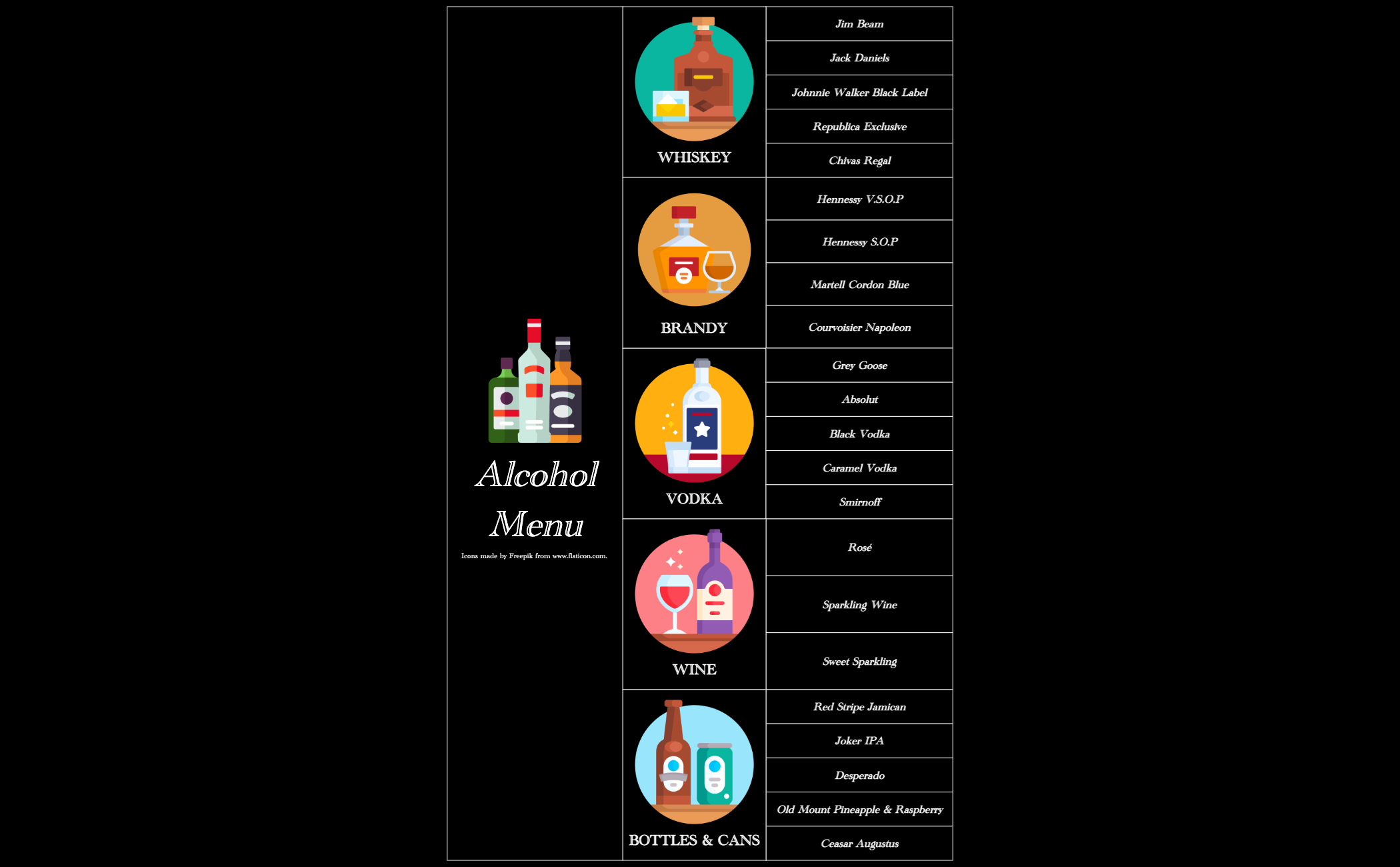
The Bar Menu mind map template organizes a drink menu into 5 major spirit categories: Whiskey, Brandy, Vodka, Wine, and Bottles & Cans, covering 29 total nodes. It lists specific brands like Jim Beam, Hennessy V.S.O.P, Grey Goose, and Red Stripe Jamaican, making it ideal for bar owners, event planners, or hospitality staff designing a cocktail or beverage list. The template's structure allows quick editing and customization in Xmind, serving as a practical bar menu cheat sheet or template for pricing and inventory planning. Icons by Freepik enhance visual appeal. This bar menu mind map is a ready-to-use template for creating professional drink menus.
Terms and ConditionsDesigning a new cocktail menu for a bar or restaurant launch
Updating drink offerings for a seasonal or event-based menu
Creating a quick reference sheet for bartenders to memorize inventory
Launch the template in Xmind to explore the pre-organized categories for Whiskey, Brandy, Vodka, Wine, and Bottles.
Replace the sample brand names with your current stock and add child nodes for specific prices or descriptions.
Customize the visual layout with icons and export your completed beverage list as a PDF or image for distribution.
The template covers 5 main spirit categories: Whiskey, Brandy, Vodka, Wine, and Bottles & Cans, with specific brand examples like Jim Beam, Hennessy V.S.O.P, and Grey Goose. It also includes an icons section.
Open the .xmind file in Xmind, then replace the sample brand names with your actual inventory. You can add prices, descriptions, or categories by editing the nodes directly.
Yes, the template is fully editable in Xmind. You can customize it and export as PDF or image for printing as a physical menu.
Absolutely. Simply right-click on the root node 'Alcohol Menu' and add new branches for categories like Cocktails or Non-Alcoholic drinks.
Use the existing categories as a starting point. Group similar drinks under each branch, and consider adding price nodes or sub-branches for detailed descriptions.
Share your mind map templates with creators around the world and start earning from your work.

